Yoast SEO is a WordPress plugin that writes the technical SEO layer most themes leave out: title tags, meta robots directives, canonical URLs, an XML sitemap and a Schema.org graph. It is for anyone running a WordPress site who wants those outputs under control without touching code. The WordPress.org listing showed version 28.7, released on 13 October 2026, and “10+ million” active installations when checked on 14 October 2026.
The verdict first: the free version covers everything a typical site needs, as long as you work through its settings once, deliberately, and then stop treating every orange bullet as a task. Pay for Premium only if you need its redirect manager, IndexNow or AI-drafted titles. Yoast’s Premium page lists it at “$118.80 / year (ex VAT)”, and “One subscription covers one site or domain” (checked 14 October 2026; the page carries no date). The same page says Premium “now includes the Local SEO, Video SEO, and News SEO plugins”. A separate tier, Yoast SEO AI+, costs “$358.80 / year (ex VAT)” and includes Yoast WooCommerce SEO and AI Brand Insights, a monitor of how ChatGPT, Gemini, Claude and Perplexity describe a brand.
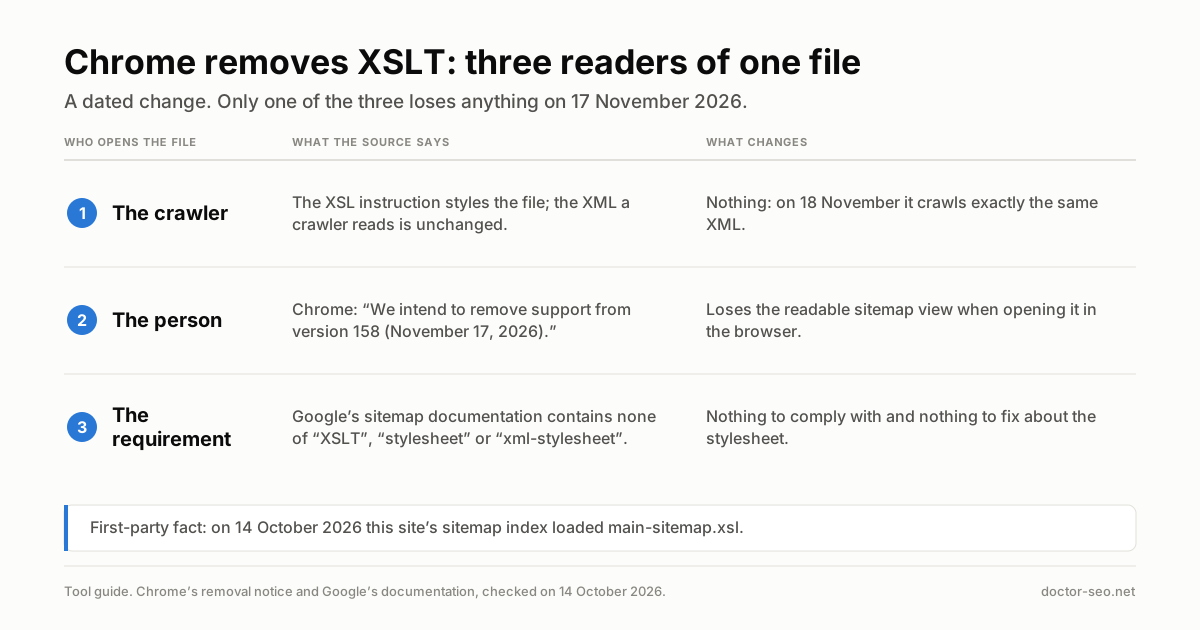
One fact on this page comes from this site’s own server rather than from Yoast. doctor-seo.net runs Yoast SEO, and its sitemap index loads an XSL stylesheet that Chrome stops executing on 17 November 2026. The workflow section explains what breaks and what does not.
How to install Yoast SEO and run the first-time configuration
Installing Yoast SEO takes three stages: the plugin, the first-time configuration wizard, and a pass through the Settings screen. The WordPress.org listing states the requirements as WordPress “6.9 or higher” and PHP “7.4 or higher” (checked 14 October 2026).
- Install the plugin. In WordPress, go to Plugins › Add Plugin, search for “Yoast SEO”, install it and activate it. A Yoast SEO item appears in the left-hand admin menu.
- Open the wizard. Yoast’s first-time configuration guide gives the path: go to Yoast SEO, then “Under General, go to First-time configuration”.
- SEO data optimization. The first step builds Yoast’s index of your content. Yoast says this step “allows Yoast SEO to see your site as Google does”, and warns that it can take a while on a site with a lot of content. Let it finish.
- Site representation. Choose whether the site represents an organization or a person. This feeds the structured data Yoast outputs on every page.
- Social profiles. Add the official profiles. The fields differ for a person and an organization.
- Personal preferences. Yoast asks permission to collect usage data. Yoast says the data helps it improve the plugin. Decide according to your privacy policy.
Everything else lives in one place. Settings sit under Yoast SEO › Settings. Yoast’s 20.0 release post of 24 January 2023 divides the sidebar into General (Site features, Site basics, Site representation, Site connections), Content types, Categories and tags and Advanced. Yoast’s current Advanced help page also lists llms.txt and Schema sub-pages under Advanced. Tutorials written before January 2023 describe a different menu layout.
The Yoast SEO settings that change outcomes, and the ones to leave alone
About nine Yoast settings decide what search engines are allowed to index and what they read about your site. The rest are presentation. The table gives each setting with the path Yoast documents, what Yoast says it does, and the action to take.
| Setting | Path in Yoast SEO › Settings | What Yoast documents | What to do |
|---|---|---|---|
| Site representation | General › Site representation | Organization (name, alternate name, logo, social profiles) or Person (a WordPress user) | Fill it in once, accurately. It sets the Organization or Person that the rest of Yoast’s schema graph references |
| Show in search results, per content type | Content types › each type | Turning it off means the type is “noindexed and kept from the XML sitemap” | Check every custom post type a plugin added. Leave posts and pages on |
| Show in search results, per taxonomy | Categories and tags › each taxonomy | Same switch, same effect on taxonomy archives | Decide per taxonomy: does an archive page answer a search on its own? |
| Author, date and format archives | Advanced › Author archives / Date archives / Format archives | Each has its own enable/disable switch | On a single-author site the author archive lists, by definition, the same posts as the blog index, because every post shares one author. Decide deliberately |
| Media pages | Advanced › Media pages | “Enable media pages” is off by default; attachment URLs redirect to the file | Leave off unless images are your product (a photo library, an image bank) |
| XML sitemaps | General › Site features | A feature toggle; output at /sitemap_index.xml |
Leave on unless another plugin already produces your sitemap |
| Breadcrumbs | Advanced › Breadcrumbs | A toggle that renders breadcrumbs in your theme; Yoast’s help page says it is disabled by default, and the 28.6 changelog (29 September 2026) says the toggle’s name and description were changed | Turn on only if your theme displays them or you add the Yoast Breadcrumbs block |
| Site connections | General › Site connections | Verification codes for Google, Bing, Baidu and Yandex | Use it if you verify by HTML tag; skip it if you verified by DNS |
| Crawl optimization | Advanced › Crawl optimization | Removes metadata, feeds and resources WordPress adds by default | Leave alone unless you know what each toggle removes (see below) |
Content types and taxonomies: the noindex switch
The single most consequential Yoast switch is the one that hides a content type or taxonomy from search. Yoast’s own article on what to show in search results states that anything set not to appear “will be noindexed and kept from the XML sitemap”, and adds a warning worth quoting: “You wouldn’t be the first to unknowingly set a whole post type to noindex.” By default, according to Yoast’s content types help page, Yoast marks pages as WebPage and posts as Article in its schema output.
Media pages and archives
WordPress creates a separate URL for every uploaded file. Yoast’s media pages documentation says “we disable the media pages by default”, which redirects those attachment URLs to the file itself, and a second Yoast page describes a default attachment page as having “little to no SEO value due to its thin content”. Author, date and format archives each have their own on/off switch under Advanced, per Yoast’s Advanced settings page. Yoast’s help pages do not state the default for those three, so check the screen rather than assume.
Crawl optimization: Yoast’s own pages disagree on whether it is free
Crawl optimization groups some twenty toggles under Remove unwanted metadata, Disable unwanted content formats, Remove unused resources and Internal site search cleanup, according to Yoast’s crawl optimization help page. Yoast flags the advanced URL cleanup settings as ones “you should only use if you know what you are doing!” Yoast’s own condition for the “Remove WP-JSON API” toggle is “Unless you’re using the WordPress REST API to output important content”, so check what reads your REST API before switching it. On a first pass, this is the section to leave alone.
Whether the feature is free depends on which Yoast page you read. Yoast’s Yoast SEO 20.4 release post of 28 March 2023 says it was “bringing our crawl optimization feature to Yoast SEO Free”, and the WordPress.org listing puts “Crawl settings” in its general feature list, not under Premium. Yet Yoast’s Advanced settings help page still labels the item “Crawl optimization (Premium)”, and Yoast’s crawl settings feature page says both “Available in Yoast SEO Free and Yoast SEO Premium” and “Unlock crawl settings in Yoast SEO Premium” (all checked 14 October 2026). The defect is specific: Yoast’s Advanced settings help page labels the feature Premium, while its 20.4 release post, its WordPress.org listing and its own crawl-optimization help page do not, and the feature page asserts both. None of these pages says which statement is current. Open your own Advanced › Crawl optimization screen before buying anything for this feature.
llms.txt, AI features and IndexNow
Yoast SEO now generates an llms.txt file, a plain-text index of a site’s content intended for large language models. Yoast’s llms.txt help page gives the path: Yoast SEO › Settings › Site features, under AI tools, switch on llms.txt and save. Yoast’s feature page says it is “free for everyone”, that the file “is generated and refreshed automatically”, and that a manual page selection mode exists. The same page says the file “helps AI tools like ChatGPT, Claude, and Gemini understand your site better”, and publishes no measurement behind that sentence. Whether a site should ship an llms.txt at all is a question this site has not ruled on, so this page gives no recommendation either way: it describes the feature and stops there.
Three other items sit behind the paywall. The WordPress.org listing puts “AI-generated titles and meta descriptions”, a “Bot blocker for AI crawlers, including GPTBot, CCBot, and Google-Extended”, and “IndexNow integration” under its Premium highlights, and Yoast’s Site features help page labels the toggle “IndexNow (Premium)”. Whether to block AI crawlers is a business decision on which the industry is split, and the bot blocker is described here only as a Premium feature, not as a recommendation.
Five Yoast SEO workflows, each ending in a decision
Each workflow starts in a browser and ends with an “if this, then that” rule.
1. Find the noindex leak in Yoast’s content type settings
Yoast’s sitemap index doubles as a map of what Yoast considers indexable, because its XML sitemap specification excludes posts “not eligible for indexing”, posts whose manual canonical points elsewhere, and private or password-protected pages. Open /sitemap_index.xml and list the child sitemaps. On 14 October 2026, doctor-seo.net’s index listed exactly two: post-sitemap.xml and page-sitemap.xml.
- If a content type you want ranked has no child sitemap → its “show in search results” switch is off, or it is empty. Check Content types first.
- If a child sitemap exists for something you never meant to rank (a plugin’s internal post type, a tag archive with one post per tag) → decide whether those URLs answer a search. If not, switch the type off and expect it to leave the sitemap.
- If the list matches your intent → move on.
2. Validate the sitemap Yoast generates
Yoast caps each child sitemap at 1,000 items by default, per its specification, and splits the rest into numbered files. Google’s sitemap documentation sets the outer limit at “50MB (uncompressed) or 50,000 URLs” per file, so a Yoast sitemap will not hit Google’s limit. What can go wrong is content: redirected URLs, URLs that return errors, or URLs blocked in robots.txt. Run the index through this site’s XML sitemap checker, and check the matching rules with the robots.txt checker.
- If the checker reports URLs that redirect or return errors → find the source post. Yoast lists what WordPress publishes, so the fix is in the content, not in Yoast.
- If URLs are blocked by robots.txt → fix the conflict before submitting the sitemap in Search Console.
3. Chrome 158 and Yoast’s XSL stylesheet
Yoast’s sitemap is styled for humans with XSLT, and Chrome removes XSLT on 17 November 2026. Yoast’s specification says “Sitemap indexes and individual sitemaps reference an XSL file”. On doctor-seo.net, fetched on 14 October 2026, the first line of /sitemap_index.xml carries an xml-stylesheet instruction of type text/xsl pointing to /wp-content/plugins/wordpress-seo/css/main-sitemap.xsl. Chrome’s XSLT removal notice says: “We intend to remove support from version 158 (November 17, 2026).”
Nothing in Google’s sitemap documentation addresses the stylesheet: checked on 14 October 2026, it contains none of “XSLT”, “stylesheet” or “xml-stylesheet”. The XSL instruction styles the file for a person opening it in a browser; the XML a crawler reads is unchanged. Test your own sitemap with this site’s XSLT checker.
- If clients or colleagues open the sitemap in a browser to audit it → warn them before 17 November 2026 that the readable view will stop rendering, and give them a validator instead.
- If nobody reads it by hand → no action. The XML underneath is unchanged.
4. Redirects: Yoast Premium or a separate plugin
Yoast SEO free has no redirect manager. Yoast’s redirect help page says “The redirect functionality is available in Yoast SEO Premium”, under Yoast SEO › Redirects, with 301, 302, 307, 410 and 451 types. Yoast’s redirect manager page adds regex rules (“Write one rule instead of hundreds”) and says it is included in Premium, Yoast SEO AI+ and Yoast WooCommerce SEO. The free alternative most sites use is the Redirection plugin, which its WordPress.org listing showed at “2+ million” active installations on 14 October 2026.
- If you rename or delete content every week, or are planning a migration → the Premium prompts on delete and move are the feature you would be paying for, because they ask for a redirect at the moment a URL disappears.
- If you change URLs a few times a year → a free redirect plugin does the same job.
- If you need redirects at server level → write them in the server configuration and keep WordPress out of it.
5. Title and meta description templates
Yoast builds every title and meta description from a template unless you overwrite it on the post. Templates live under Content types and Categories and tags, and use variables listed in Yoast’s snippet variables reference: %%title%% for the post title, %%sep%% for the separator, %%sitename%% for the site title, %%primary_category%%, and %%excerpt%%, which is “auto-generated if it does not exist”.
For titles, the decision is mechanical. If your template appends the site name and your post titles are long → shorten the template so the topic survives truncation. If two content types share one template and produce identical titles on archives → give each its own template.
For meta descriptions, practitioners disagree, and this site has not ruled. One camp writes a description for every page; another writes them only for important pages and lets Google build the rest. Google’s snippet documentation states that “Snippets are primarily created from the page content itself” and that Google “sometimes uses the meta description HTML element if it might give users a more accurate description”. Yoast gives you the field and the template; how much effort to put into them is your call.
Executable checklist: a Yoast SEO install in a known state
- First-time configuration completed, including the SEO data optimization step.
- Site representation set to the correct organization or person, with a logo.
- Every content type in Content types reviewed; only the ones you want ranked show in search results.
- Every taxonomy in Categories and tags reviewed the same way.
- Author, date and format archives each switched on or off deliberately.
- Enable media pages off, unless images are the product.
/sitemap_index.xmllists exactly the child sitemaps you expect, and passes the XML sitemap checker.- Breadcrumbs enabled only if they display.
- Crawl optimization untouched, or each changed toggle written down with the reason.
- Title templates checked on one post, one page and one archive in the live HTML.
- A redirect method chosen before the first URL change.
What Yoast SEO cannot tell you
Yoast SEO configures what your site outputs. It does not measure what Google does with it, and Yoast’s own pages say as much about its analyses.
- Whether a page will rank. The traffic-light SEO and readability analyses are heuristics. Yoast’s content analysis guide says “you don’t have to keep on optimizing until all of the traffic lights are green”, and adds that “the overall score should be green”. Its word count article says the text length check “serves as a guideline only and does not guarantee rankings”. That check wants more than 300 words on a post and more than 900 on cornerstone content. Whether content length matters for ranking is contested, and those numbers are Yoast’s thresholds, not measurements of Google.
- Anything from Search Console. Yoast never sees impressions, clicks, queries or index coverage. It tells you a page is set to index; only Google Search Console tells you whether it was indexed.
- Whether schema earns anything. Yoast outputs an “interconnected structured data graph”, per its schema guide. Whether that markup helps rich results or AI citations is not something the plugin can measure, and the evidence on AI citations is disputed.
- Whether llms.txt is read. Yoast generates the file; nothing in the plugin reports who requests it. Your server logs can.
- Redirect needs, in the free version. Without Premium, Yoast does not warn when a deleted post leaves a 404.
Alternatives to Yoast SEO
Two other all-in-one SEO plugins have their own large installed bases, and each will get its own tool page on this site. Rank Math SEO showed “4+ million” active installations on its WordPress.org listing, and All in One SEO showed “2+ million” on its listing (both checked 14 October 2026). Pages on Rank Math and All in One SEO are coming, followed by one on the Redirection plugin, the usual free answer to Yoast’s Premium-only redirects. Run only one SEO plugin at a time: two plugins writing title tags and sitemaps produce duplicates. The SEO tools hub lists every tool page as it publishes.
Where the course goes deeper
This page covers the plugin. The method behind the fields Yoast exposes belongs to the course’s On-Page SEO level, where the lessons “Title tags”, “Meta descriptions” and a lesson on structured data are coming. The crawling and indexing side, including sitemaps and robots.txt, is covered in the technical SEO level. If you want an AI assistant to read and edit WordPress SEO fields directly, the Level 8 lesson Claude and Your CMS: WordPress, Rank Math, and Write Access covers the setup and its risks. Unfamiliar terms are defined in the SEO glossary.
Sources
- WordPress.org, Yoast SEO plugin listing and changelog (version 28.7, released 13 October 2026; 28.6 entry dated 29 September 2026; checked 14 October 2026)
- Yoast, Yoast SEO Premium product page (undated, checked 14 October 2026)
- Yoast, Yoast SEO AI+ product page (undated, checked 14 October 2026)
- Yoast, Yoast SEO first-time configuration (undated, checked 14 October 2026)
- Yoast, Yoast SEO 20.0: a brand-new settings interface (24 January 2023, checked 14 October 2026)
- Yoast, Indexing in Yoast SEO: what pages to show in search results (14 February 2022, checked 14 October 2026)
- Yoast, Yoast SEO settings: Content types (undated, checked 14 October 2026)
- Yoast, Yoast SEO settings: Advanced (undated, checked 14 October 2026)
- Yoast, Yoast SEO settings: Media pages and How to redirect attachment URLs (undated, checked 14 October 2026)
- Yoast, Yoast SEO settings: Crawl optimization (undated, checked 14 October 2026)
- Yoast, Yoast SEO 20.4 release post (28 March 2023, checked 14 October 2026)
- Yoast, Crawl optimization settings feature page (undated, checked 14 October 2026)
- Yoast, How to enable llms.txt with Yoast SEO and llms.txt feature page (undated, checked 14 October 2026)
- Yoast, Yoast SEO settings: Site features (undated, checked 14 October 2026)
- Yoast, How to implement Yoast SEO breadcrumbs (undated, checked 14 October 2026)
- Yoast Developer Portal, XML sitemaps: functional specification and Site connections (undated, checked 14 October 2026)
- Yoast, How to redirect a post or page in Yoast SEO Premium and Redirect manager feature page (undated, checked 14 October 2026)
- Yoast, List of available snippet variables (undated, checked 14 October 2026)
- Yoast, Schema SEO with Yoast SEO (undated, checked 14 October 2026)
- Yoast, How to use Yoast SEO’s content analysis tool (15 August 2019, checked 14 October 2026)
- Yoast, Word count and SEO (12 December 2025, checked 14 October 2026)
- Google Chrome for Developers, Removing XSLT for a more secure browser (Last updated 2025-10-29 UTC, checked 14 October 2026)
- Google Search Central, Build and submit a sitemap (Last updated 2026-07-08 UTC, checked 14 October 2026)
- Google Search Central, Control your snippets in search results (Last updated 2026-04-20 UTC, checked 14 October 2026)
- WordPress.org listings for Rank Math SEO, All in One SEO and Redirection (checked 14 October 2026)
- doctor-seo.net,
/sitemap_index.xml, first-party fetch (14 October 2026)